
What Are Optional Add-ons?
Most menu items are served to every guest, so Platero multiplies them by the event's guest count. Some items work differently: a dessert that only some guests order, an extra side, or an item a customer buys in a set quantity.
Optional add-ons are menu items you attach to a menu and then choose event by event. For each event you tick the add-ons you need and enter how many. The quantity is typed in directly, so it does not depend on the guest count.
Before You Begin
Every add-on is a menu item, so make sure the item exists under Menu Items first.
Link a recipe to the menu item so Platero can cost it and include its ingredients in your order lists. Each unit of an add-on is costed as one portion of the menu item's recipe. For example, a Dessert Square add-on should use the recipe for one dessert square.
Add Optional Add-ons to a Menu
- Select Menus from the navigation menu.
- Click Add Menu to create a new menu, or Edit to change an existing one.
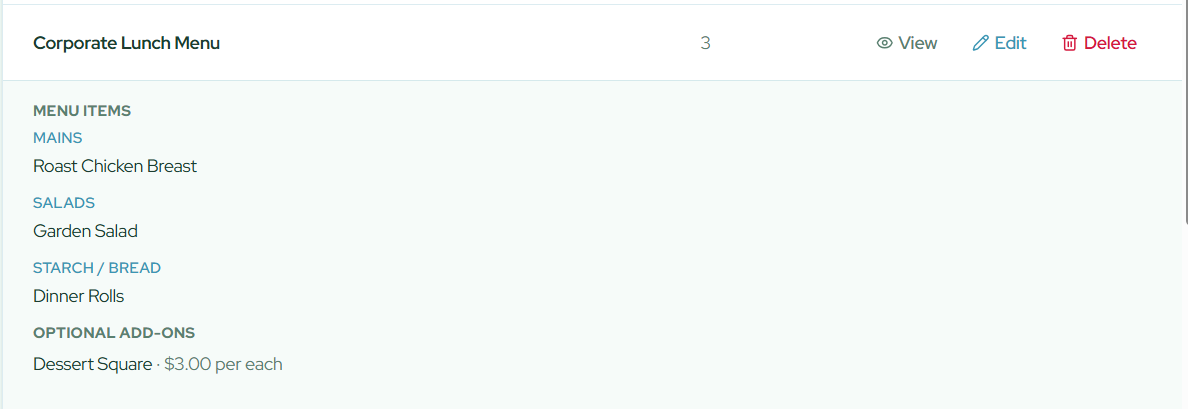
- In the Optional Add-ons section, click + Add.
- Choose the menu item. Then enter the price for one unit, what a unit is called (for example, each or tray), and the minimum order if there is one.
- Repeat for each add-on, then click Save.
The price, unit name and minimum order are all optional. Items that come in different versions at different prices, such as a small and a large size, should be separate add-ons, each linked to its own menu item.
Choose Add-ons for an Event
- Select Events from the navigation menu.
- Click Add Event, or Edit on an existing event.
- Under Menus, choose the menu. Its optional add-ons appear underneath with a checkbox for each one.
- Tick every add-on this event needs. The quantity box fills in with the minimum order (or 1), so change it to the amount you need.
- Save the event.
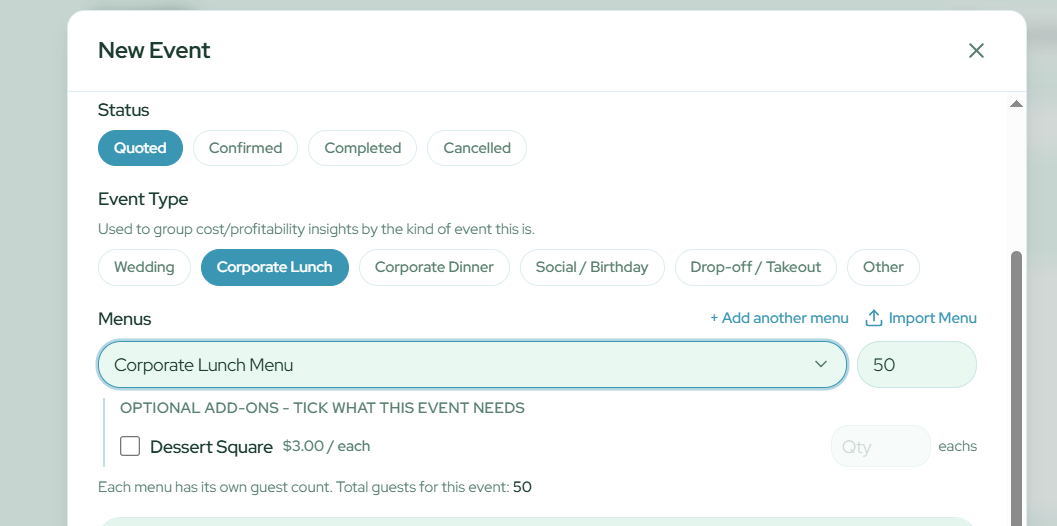
Add-ons you leave unticked are not included in the event. If you enter less than an add-on's minimum order, Platero shows a warning, and you can still save.
Where Add-ons Show Up
Once an add-on is ticked on an event, Platero includes it everywhere it matters:
- Cost estimate: the event's food cost includes each add-on's quantity multiplied by the cost of its recipe. The event also shows your add-on sales at menu prices, with a button to set the revenue to that amount.
- Order lists: the ingredients for each add-on are added to the order list, scaled to the quantity you entered.
- Quotes: when you create a quote from the event, each add-on appears as a priced line item.
- Calculator: when you open the event in the Calculator, its add-ons are listed in an Add-ons for this event section and included in the totals.